How to deliver a reader magnet with Flodesk
· 4 min read
Flodesk is popular with authors for its good-looking email designs. This guide connects it to Storyfinch so every reader who picks up your free book is added to a Flodesk segment, ready for your welcome workflow.
What you need
- A paid Flodesk plan. Flodesk only offers API keys to paid members, not on its free plan or during a trial.
- Your reader magnet as an EPUB, a PDF, or both, plus a cover image.
- Storyfinch Pro for the automatic connection. On the free plan you can download your new readers as a spreadsheet and import them into Flodesk yourself.
Step 1: Create a segment
Flodesk groups subscribers into segments rather than lists, and a subscriber can be in several at once. Go to Audience → Segments, click + New segment, name it for this book, and save. Storyfinch adds each reader's email address and, if they gave it, their first name.
Step 2: Create an API key
- Open your account menu and go to Integrations → API keys.
- Click Create API key and give it a label (for example "Storyfinch").
- Copy the key. Flodesk only shows the full key once; if you lose it, create a new one.
Step 3: Connect Flodesk in Storyfinch
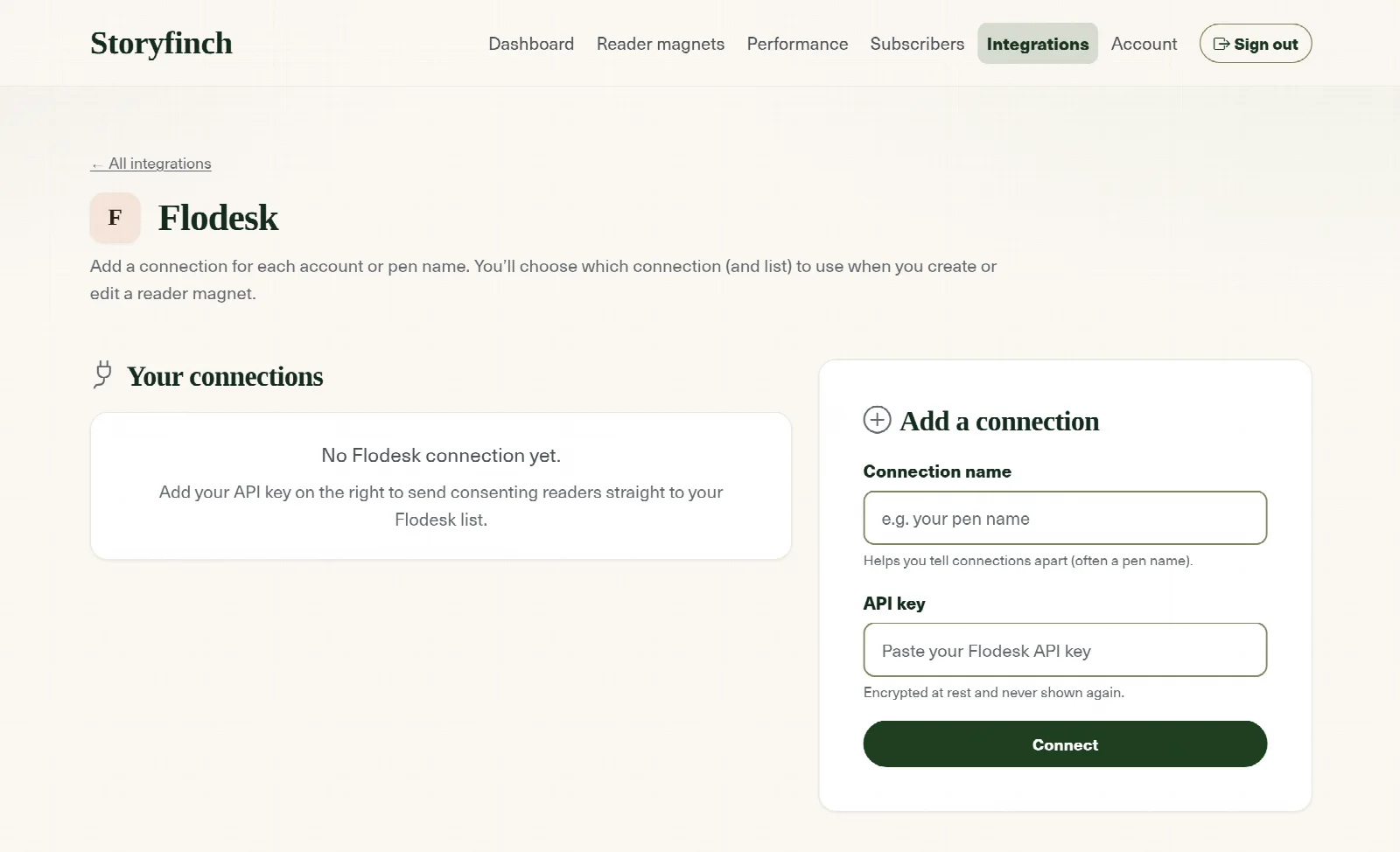
In Storyfinch, open Integrations, choose Flodesk, and add a connection. Name it (your pen name works well) and paste the API key. Storyfinch checks it straight away and stores it encrypted.
Step 4: Choose the segment for your reader magnet
In your reader magnet's settings, under the mailing list options, pick your Flodesk connection and the segment from step 1. Every reader who signs up and agrees to join your list is then added to it. If they are already a Flodesk subscriber, they are updated and added to the segment, without being removed from any others.
Readers are added as active subscribers, without a Flodesk confirmation email, because they have already agreed on your Storyfinch page and Storyfinch keeps a record of what they agreed to. Readers who do not tick the box to join are not sent to Flodesk. If you want readers to confirm their address, switch that on in Storyfinch. See single vs double opt-in.
Step 5: Start a welcome workflow
Storyfinch delivers the book, so Flodesk handles the follow-up. Create a workflow with the A subscriber is added to a segment trigger, choose your reader magnet segment, and add your welcome email. The trigger only fires when someone newly joins the segment, so readers who were already in it will not get the welcome again.
Then test it: sign up on your own Storyfinch page with a new address you can check, and confirm the workflow starts. Our welcome email sequence guide has an outline to adapt.
Flodesk's plans
Flodesk no longer has one flat price for new members. As of October 2026, prices depend on how many active subscribers you have, starting at $25 a month ($19 a month billed yearly) on the Lite plan for up to 1,000 subscribers, which includes one workflow. Pro, from $28 a month, gives unlimited workflows. The free plan does not include sending email, workflows or API keys. Check Flodesk's pricing page for current figures.
If you would rather start free, MailerLite, Brevo and EmailOctopus all have free plans that connect to Storyfinch.
Frequently asked questions
Where do I find my Flodesk API key?
Account menu → Integrations → API keys → Create API key. The full key is only shown once, so copy it straight away.
Why can't I create a Flodesk API key?
API keys are only for paid Flodesk members. They are not available on the free plan or during a free trial.
Does Flodesk use lists?
Flodesk uses segments instead. In Storyfinch, choose a segment where other services would ask for a list.
Will readers get a Flodesk confirmation email?
No. Storyfinch adds readers who agreed on your signup page as active subscribers. Turn on confirmation in Storyfinch if you want readers to confirm their address.
Grow your list with your next book
Give readers a free book and turn them into subscribers, with secure delivery and consent built in.
Create your free accountFree plan · No card required · Set up in minutes